
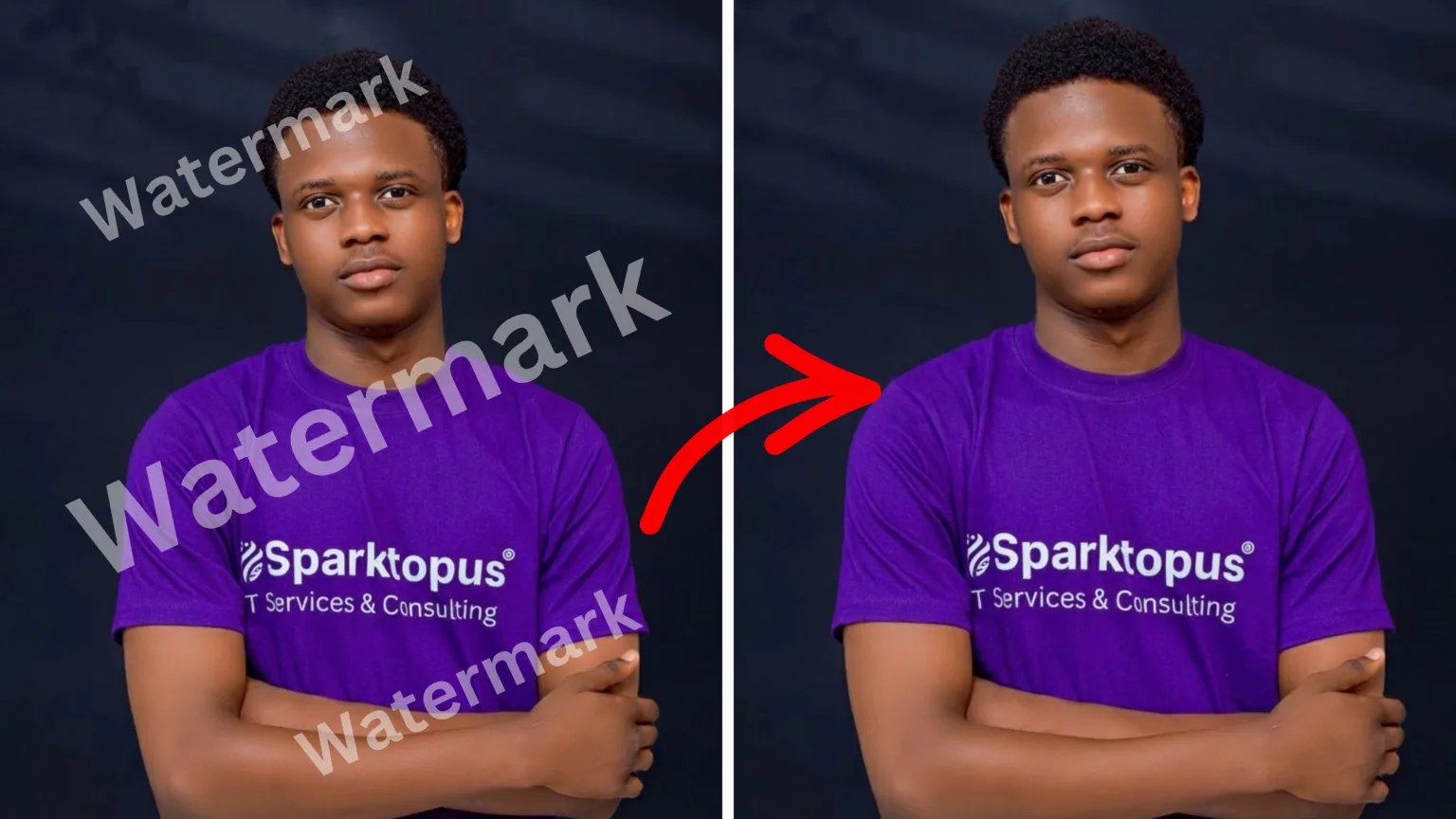
Removing unwanted overlays from an image has become easier with AI-powered editing tools. If you have permission to edit an image or own the rights to it, ChatGPT can help reconstruct areas covered by watermarks or other unwanted elements while preserving the original quality.
Why Use ChatGPT for Watermark Removal?
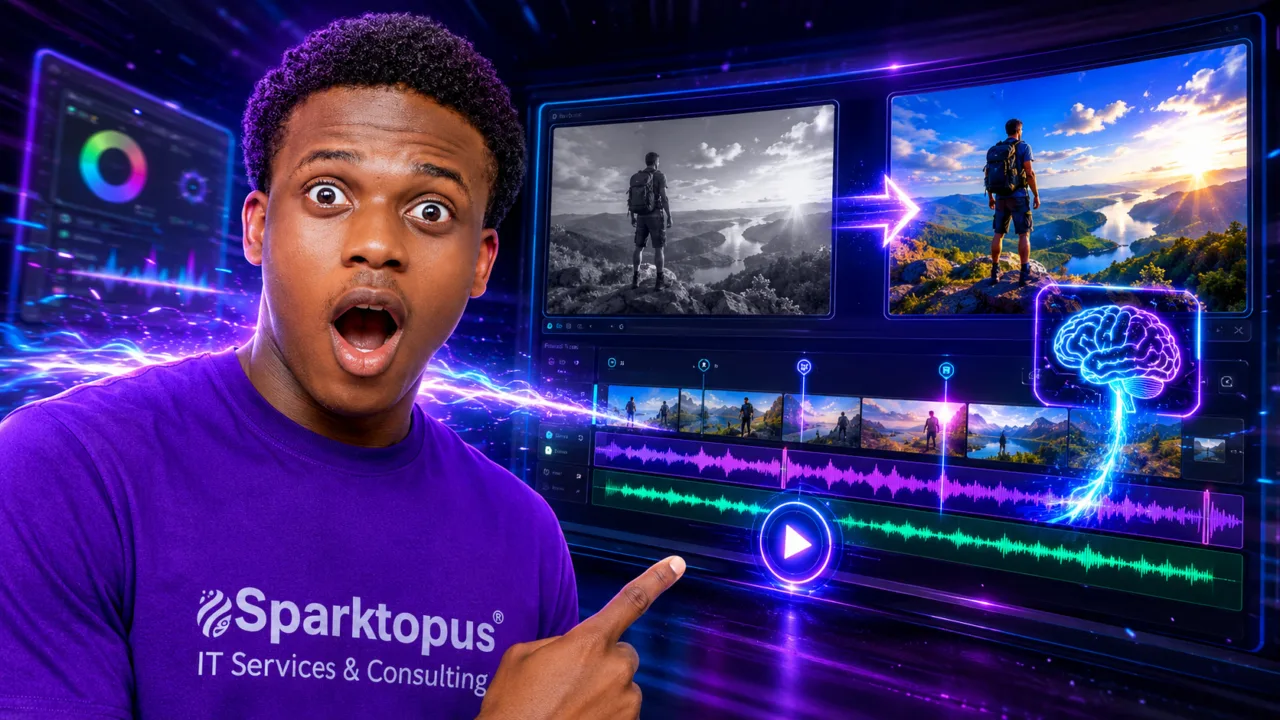
ChatGPT’s image editing capabilities can intelligently rebuild parts of an image after removing an authorized watermark or overlay. Instead of simply blurring or cropping the affected area, it attempts to recreate textures, colors, and details so the final result looks natural.
This makes it useful for cleaning up your own images, restoring old graphics, or removing accidental text overlays.
The Prompt to Use
Copy and paste the following prompt into ChatGPT, then upload the image you are authorized to edit:
Edit the attached image by removing only the watermark or unwanted overlay that I am authorized to remove.

Preserve the original image details, composition, lighting, colors, texture, sharpness, aspect ratio, and resolution. Reconstruct the covered area naturally so it blends with the surrounding pixels. Do not crop, stretch, blur, distort, or change the main subject.

Maintain high quality and keep the final image clean, realistic, and visually consistent with the original. Do not add new objects, text, logos, or effects.
Step 1: Open ChatGPT
Go to ChatGPT and start a new conversation that supports image uploads and editing.
Step 2: Paste the Prompt
Copy the prompt above and paste it into the message box before uploading your image. This gives ChatGPT clear instructions on how you want the image edited.
Step 3: Upload Your Image
Attach the image that contains the watermark or unwanted overlay you have permission to remove.
Wait for the upload to complete before sending the request.
Step 4: Submit the Request
Send the prompt along with the uploaded image.
ChatGPT will analyze the image and generate an edited version that attempts to remove only the specified overlay while preserving the rest of the picture.
Step 5: Review the Result
Once processing is complete, inspect the edited image carefully.
Check that:
- The watermark or overlay has been removed.
- The reconstructed area blends naturally with nearby pixels.
- The lighting, colors, and textures remain consistent.
- The main subject of the image has not been altered.
If necessary, you can refine the prompt and try again.
Step 6: Download the Edited Image
If you are satisfied with the result, use ChatGPT’s download or export option to save the edited version to your device.
You can then use the image for your authorized purposes.
Tips for Better Results
To achieve the highest-quality output:
- Upload the highest-resolution image available.
- Use a clear and specific prompt.
- Avoid heavily compressed source images.
- Review the final image for any reconstruction artifacts.
- Keep backup copies of the original file.
When This Method Is Appropriate
AI-based watermark removal can be useful when:
- You own the original image.
- You accidentally added a watermark or overlay yourself.
- You have explicit permission from the copyright holder to remove it.
- You are cleaning up graphics for internal or authorized use.
Always respect copyright laws and licensing agreements when editing images.
Key Takeaways
ChatGPT provides a convenient way to remove authorized watermarks and unwanted overlays while preserving image quality. By using a detailed prompt and supplying a high-quality source image, you can often produce clean, natural-looking results in just a few minutes.
The most important rule is to use this capability responsibly and only on images you own or have permission to modify.
Important: Only remove watermarks or overlays from images that you own or that you are legally authorized to modify. Do not use this method to bypass copyright protections or licensing requirements for stock photos or other protected content.