

By using this site, you agree to the Privacy Policy and Terms of Use.
Accept
Sparktopus Blog
Saturday, Jun 27, 2026
  • What's Hot:
  • Business Growth
  • AI
  • Website Development
  • Home
  • Latest
  • Technology
    • AI Automation
    • AI
    • App Development
    • Cloud Services
    • Cybersecurity
    • Search Engine Optimization
    • Domains
      • Configuration and management
    • Hosting
      • VPS
        • Pre-installed applications
    • Tech News
  • Business
    • Marketing
    • Sales
    • Monetization
    • Personal brand
    • Communication
    • Digital Marketing
    • Productivity
  • Website
    • Website Design
    • Website Development
  • Creative & Media
    • Graphic Design
    • Video Ads
    • Prompt
  • Learning
    • Free Courses
  • Make money online
Reading: How to Connect Website Email to Gmail in Minutes
Advertise
Latest
How to Connect Website Email to Gmail in Minutes
How to Remove Watermarks from Images with ChatGPT
12 AI Productivity Tools That Will Save You Hours
n8n Performance Benchmark, See How Fast It Really Is
7 Best Content Creation Equipment for Beginners
Font ResizerAa
Sparktopus BlogSparktopus Blog
  • Home
  • Latest
  • Tech News
  • Technology
  • Business
  • Marketing
  • Sales
  • Monetization
  • AI Automation
  • Website Development
  • App Development
  • Digital Marketing
  • Search Engine Optimization
  • Graphic Design
  • Video Ads
  • Cybersecurity
  • Cloud Services
Search
  • Home
  • Latest
  • Advertise with us
  • About Us
  • Contact
  • Newsletter
  • Sitemap
  • Terms of Service
  • Privacy Policy

Trending →

How Much Does Email Marketing Cost? (Full Breakdown)

By MrSparktopus
2 months ago

How to Remove Watermarks from Images with ChatGPT

By MrSparktopus
15 hours ago

5 Costly App Mistakes Every Business Must Avoid

By MrSparktopus
10 months ago

10 Proven Design Tips to Boost Your Business Success

By MrSparktopus
10 months ago

5 Powerful Cloud Services Every Business Must Use

By MrSparktopus
10 months ago
Follow US
© 2026 Sparktopus Blog. All Rights Reserved.

- Advertisement -

Home » Latest » How to Connect Website Email to Gmail in Minutes
Email

How to Connect Website Email to Gmail in Minutes

Emmanuel Masebinu - Sparktopus CEO
Last updated: June 27, 2026 6:03 am
By MrSparktopus
Share
5 Min Read
How to Connect Website Email to Gmail in Minutes
SHARE
Contents
Why Connect Your Website Email to Gmail?What You’ll NeedStep 1: Open Gmail SettingsStep 2: Import Incoming EmailsStep 3: Configure Outgoing MailPOP3 vs. IMAPTest Your SetupCommon Problems and FixesImprove Email DeliverabilityKeep Your Account SecureKey Takeaways

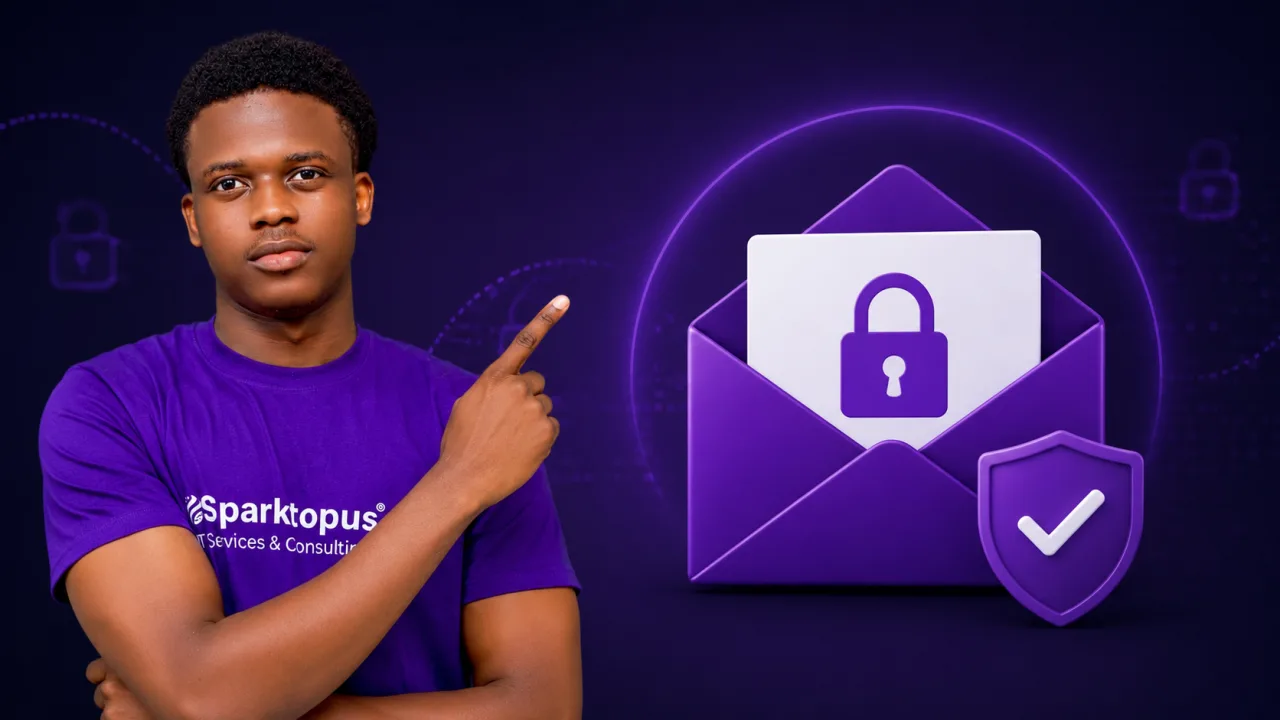
If you have a custom email address like you@yourdomain.com, you don’t have to log in to a separate webmail dashboard every time you want to check your messages. You can connect your website email to Gmail and manage everything from one familiar inbox.

This setup makes it easier to read, organize, and send emails while keeping your professional domain name.

Why Connect Your Website Email to Gmail?

Using Gmail with your custom domain email offers several benefits:

  • Access all your emails in one place
  • Take advantage of Gmail’s spam filtering
  • Use Gmail’s search and organization features
  • Send emails from your business address
  • Access your inbox from any device using the Gmail app

For many users, it provides a better experience than traditional webmail interfaces.

What You’ll Need

Before you begin, make sure you have:

  • An active custom email account (such as info@yourdomain.com)
  • The email password
  • POP3 or IMAP server details
  • SMTP server details
  • A Gmail account

You can usually find the server information in your hosting control panel or from your email provider.

Step 1: Open Gmail Settings

Log in to Gmail and click the gear icon.

Then:

  1. Select See all settings
  2. Open the Accounts and Import tab
  3. Locate the section for adding another email account

This is where you’ll configure your website email.

Step 2: Import Incoming Emails

Choose the option to check mail from another account.

Enter your custom email address and provide the required POP3 credentials:

  • Username
  • Password
  • POP server
  • Port number

You can also choose whether to leave a copy of messages on the server or archive incoming mail automatically.

Once configured, Gmail will begin fetching emails from your website mailbox.

Step 3: Configure Outgoing Mail

To send messages from your domain email address:

  1. Go back to Accounts and Import
  2. Select Add another email address
  3. Enter your name and custom email
  4. Provide the SMTP server information
  5. Enter your username and password
  6. Complete the verification process

After verification, Gmail can send messages that appear to come directly from your professional email address.

POP3 vs. IMAP

Some providers offer both POP3 and IMAP.

POP3 downloads emails into Gmail and may remove them from the server depending on your settings.

IMAP synchronizes messages across multiple devices and keeps folders in sync.

If your provider supports IMAP, it is often the better choice for users who access email from several devices.

Test Your Setup

After configuration:

  • Send a message to your custom email address
  • Verify it appears in Gmail
  • Reply from Gmail using your domain address
  • Confirm the recipient sees your custom email instead of your Gmail address

Testing ensures both incoming and outgoing mail work correctly.

Common Problems and Fixes

If the connection fails, check the following:

  • Incorrect username or password
  • Wrong POP3, IMAP, or SMTP server details
  • Incorrect port numbers
  • Firewall restrictions
  • Two-factor authentication requirements
  • Outdated email credentials

Double-check the information provided by your hosting company if issues persist.

Improve Email Deliverability

To help your emails reach inboxes instead of spam folders, configure your domain’s authentication records:

  • SPF
  • DKIM
  • DMARC

These records verify that your messages are legitimate and improve sender reputation.

Keep Your Account Secure

After connecting your website email to Gmail:

  • Use a strong password
  • Enable two-factor authentication
  • Regularly review account activity
  • Avoid using public Wi-Fi without protection
  • Keep recovery information up to date

These simple steps help protect both your Gmail account and your business email.

Key Takeaways

Connecting your website email to Gmail allows you to manage professional communications from a single, convenient interface. By configuring incoming and outgoing mail correctly and following good security practices, you can enjoy Gmail’s powerful features while maintaining a polished custom domain identity.

With the right settings, the entire process can be completed in just a few minutes.

Emmanuel Masebinu - Sparktopus CEO
MrSparktopus

CEO & Founder of Sparktopus, Inc.

- Advertisement -

Share This Article
Facebook Copy Link
Previous Article How to Remove Watermarks from Images with ChatGPT How to Remove Watermarks from Images with ChatGPT

Latest Posts

How to Remove Watermarks from Images with ChatGPT
15 hours ago
12 AI Productivity Tools That Will Save You Hours
1 day ago
n8n Performance Benchmark, See How Fast It Really Is
1 week ago
7 Best Content Creation Equipment for Beginners
1 week ago
How to Make Money on Twitch (Even If You’re Starting From $0)
2 weeks ago
How to Improve Your Ecommerce Conversion Rate
2 weeks ago
SPF, DKIM, DMARC How to Stop Spam and Secure Your Inbox
SPF, DKIM, DMARC: How to Stop Spam and Secure Your Inbox
2 weeks ago
How to Use Claude AI Beginner Full Guide
How to Use Claude AI: Beginner Full Guide
2 weeks ago
Best anti detection browsers 2026
12 Best Anti-Detection Browsers to Use in 2026
2 weeks ago
Which OS Is Best for Docker Maximize Speed & Stability.
Which OS Is Best for Docker? Maximize Speed & Stability
2 weeks ago

You Might Also Like ↷

What Is Email Hosting (And How to Choose the Right Provider)

What Is Email Hosting? (And How to Choose the Right Provider)

Email
2 weeks ago
Inbound Email Marketing Explained Attract, Engage & Convert

Inbound Email Marketing Explained: Attract, Engage & Convert

Email
2 weeks ago
What Is an Email Alias? (And How to Use It)

What Is an Email Alias? (And How to Use It)

Email
3 weeks ago
10 Email Design Best Practices for Maximum Engagement

10 Email Design Best Practices for Maximum Engagement

Email
3 weeks ago
- Advertisement -
  • Advertise with us
  • About Us
  • Contact
  • Newsletter
  • Sitemap
  • Corrections Policy
  • Diversity Policy
  • Diversity Staffing Report
  • Editorial Principles
  • Ethics Policy
  • Feedback Policy
  • Ownership & Funding
  • Terms of Service
  • Privacy Policy

Sparktopus Blog is your go-to source for insights on AI, technology, business, cybersecurity, digital marketing, websites, monetization, productivity, and more. Discover practical guides, industry news, expert strategies, and innovative ideas designed to help businesses, creators, and entrepreneurs grow in the digital world.

Sparktopus Blog Logo
  • AI Automation
  • App Development
  • Cloud Services
  • Cybersecurity
  • Digital Marketing
  • Free Courses
  • Graphic Design
  • Monetization
  • Search Engine Optimization
  • Video Ads
  • Website Development
FacebookLike
XFollow
InstagramFollow
YoutubeSubscribe
TiktokFollow
WhatsAppFollow

© 2026 Sparktopus Blog. All Rights Reserved.

Designed & Developed by Sparktopus.

Welcome Back!

Sign in to your account

Username or Email Address
Password

Lost your password?